Step 3: Setting Up Tools
In this step, you will create all the tools that power the SokoAI agents. Tools connect your agents to real backend services — Cloud Run APIs, BigQuery, and Google Search.
Tool Overview
| Tool | Type | Agent(s) |
|---|---|---|
process_cart |
OpenAPI (Cloud Run) | Root, Marketplace, Carparts, Accounts |
search_parts |
OpenAPI (Cloud Run) | Carparts |
search_products |
OpenAPI (Cloud Run) | Marketplace |
finance_table |
Datastore (BigQuery) | Finance |
lookup_finance |
Google Search | Finance |
product_carousel |
Widget | Marketplace, Carparts |
Opening the Tools Panel
-
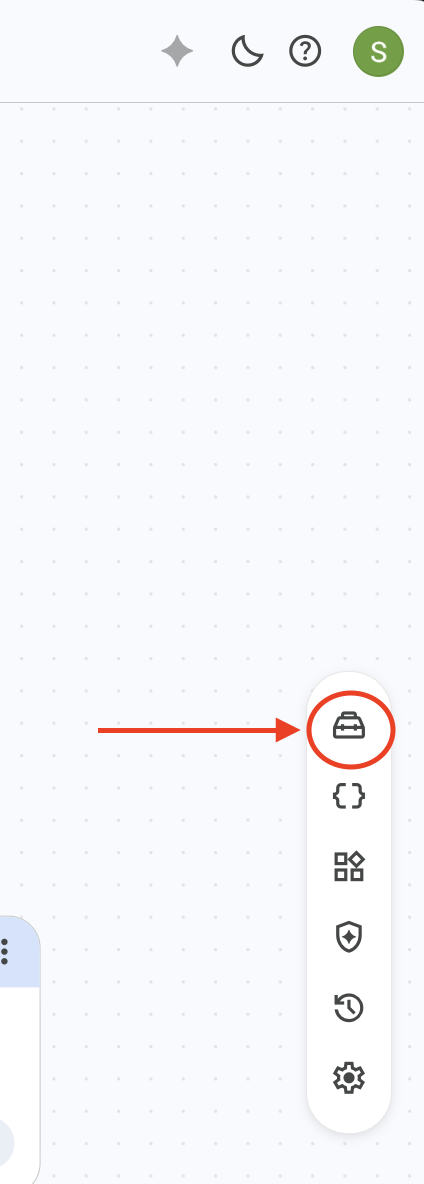
Click the Tools icon on the right side of the Agent Builder screen.
-
In the side panel that opens, click the
+button next to the search input to add a new tool.
Tool 1: process_cart (OpenAPI)
This tool connects to the Cloud Run cart service and handles all cart operations, checkout, and order tracking.
-
Click
+in the tools panel, then select the OpenAPI connector. -
Set the tool name to
process_cart.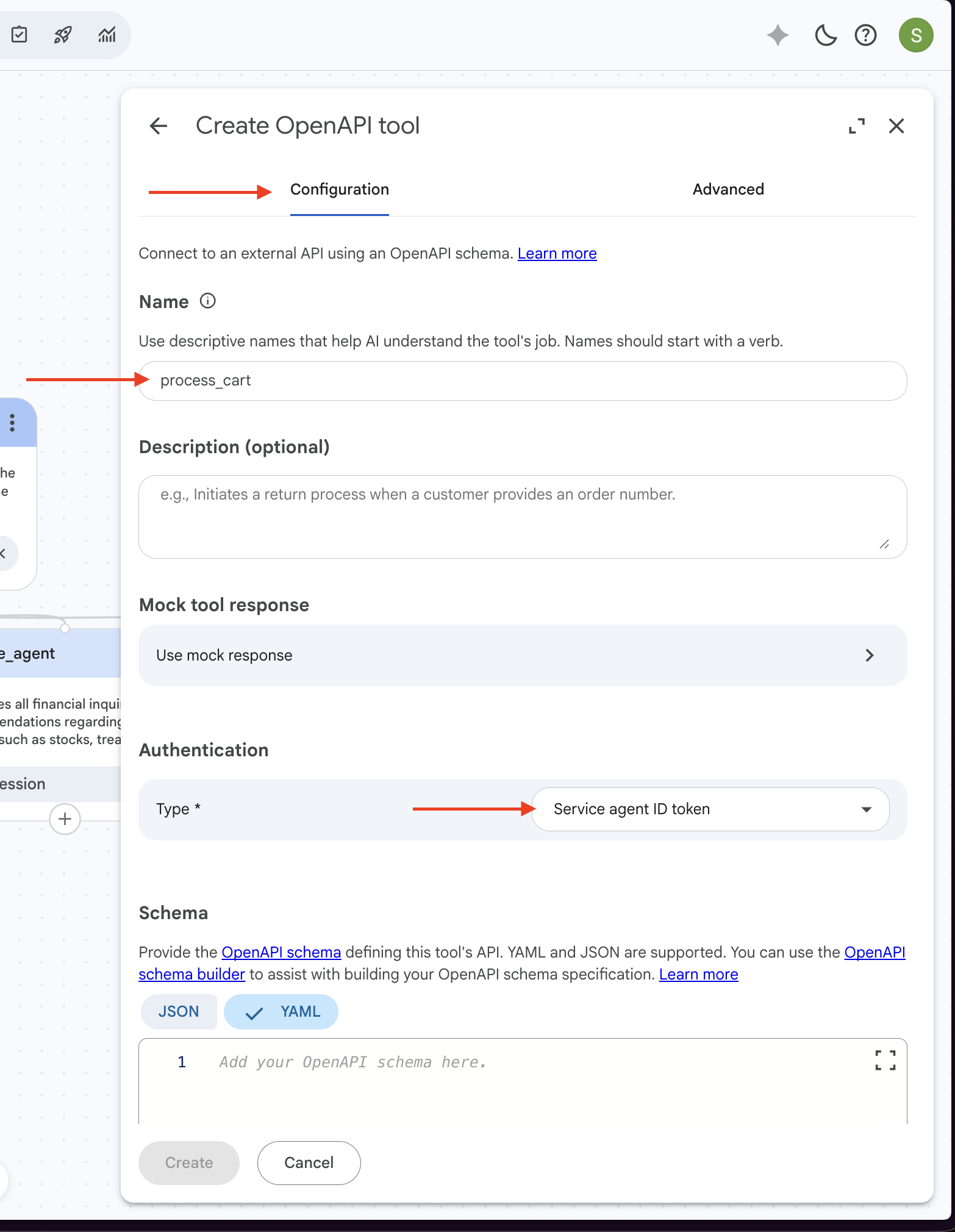
-
Below the Authentication tab, switch to YAML configuration.
-
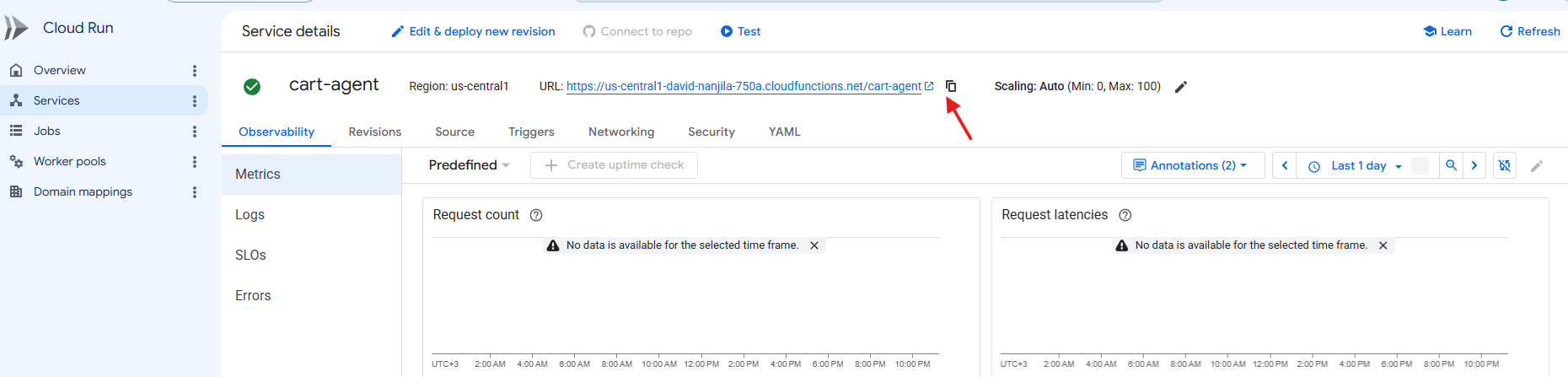
Navigate to GCP Console → Cloud Run → Services, then click cart-agent to copy its URL.
-
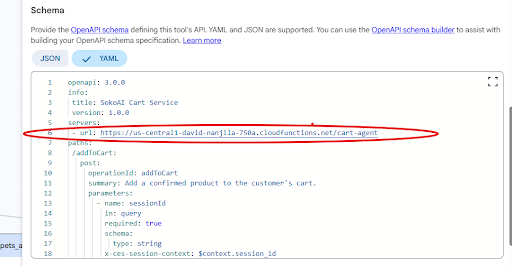
Paste the URL into the YAML below, replacing
<ENTER URL HERE>, then copy the entire YAML into the editor:
process_cart OpenAPI YAML — click to expand
openapi: 3.0.0
info:
  title: SokoAI Cart Service
  version: 1.0.0
servers:
  - url: <ENTER URL HERE>
paths:
  /addToCart:
    post:
      operationId: addToCart
      summary: Add a confirmed product to the customer's cart.
      parameters:
        - name: sessionId
          in: query
          required: true
          schema:
            type: string
          x-ces-session-context: $context.session_id
      requestBody:
        required: true
        content:
          application/json:
            schema:
              type: object
              required: [productId]
              properties:
                productId:
                  type: string
                quantity:
                  type: integer
                  default: 1
      responses:
        "200":
          description: Cart updated successfully.
        "404":
          description: productId not found in catalogue.
        "409":
          description: Requested quantity exceeds available stock.
  /modifyCart:
    post:
      operationId: modifyCart
      summary: Change the quantity of an item already in the cart, or remove it if quantity is 0.
      parameters:
        - name: sessionId
          in: query
          required: true
          schema:
            type: string
          x-ces-session-context: $context.session_id
      requestBody:
        required: true
        content:
          application/json:
            schema:
              type: object
              required: [productId, quantity]
              properties:
                productId:
                  type: string
                quantity:
                  type: integer
      responses:
        "200":
          description: Cart updated successfully.
        "404":
          description: productId not found in cart.
  /askToModifyCart:
    post:
      operationId: askToModifyCart
      summary: Confirm with the customer that it is okay to modify their cart.
      responses:
        "200":
          description: Confirmation acknowledged.
  /session/{sessionId}:
    get:
      operationId: getCustomerInfo
      summary: Look up the customer's name, phone, and delivery location for this session.
      description: Returns the form data linked to this session, if available.
      parameters:
        - name: sessionId
          in: path
          required: true
          schema:
            type: string
          x-ces-session-context: $context.session_id
      responses:
        "200":
          description: Customer info found.
          content:
            application/json:
              schema:
                type: object
                properties:
                  success:
                    type: boolean
                  session:
                    type: object
                    properties:
                      name:
                        type: string
                      phone:
                        type: string
                      location:
                        type: string
        "404":
          description: No session found - form data has not been linked yet.
  /cart/{sessionId}:
    get:
      operationId: getCartTotal
      summary: Retrieve the customer's current cart contents and subtotal.
      description: Returns all items currently in the cart and the running subtotal in KES.
      parameters:
        - name: sessionId
          in: path
          required: true
          schema:
            type: string
          x-ces-session-context: $context.session_id
      responses:
        "200":
          description: Cart contents returned.
          content:
            application/json:
              schema:
                type: object
                properties:
                  success:
                    type: boolean
                  cart:
                    type: object
                    properties:
                      items:
                        type: array
                        items:
                          type: object
                          properties:
                            productId:
                              type: string
                            productName:
                              type: string
                            unitCost:
                              type: number
                            quantity:
                              type: integer
                            lineTotalKes:
                              type: number
                      subtotalKes:
                        type: number
  /checkout:
    post:
      operationId: initiateCheckout
      summary: Initiate payment for the customer's current cart via Pesapal.
      description: Uses the real cart subtotal for record-keeping, but the actual charged amount is a fixed demo value configured server-side.
      parameters:
        - name: sessionId
          in: query
          required: true
          schema:
            type: string
          x-ces-session-context: $context.session_id
      responses:
        "200":
          description: Checkout initiated successfully.
          content:
            application/json:
              schema:
                type: object
                properties:
                  message:
                    type: string
                  merchantReference:
                    type: string
                  cartSubtotalKes:
                    type: number
                  chargedAmountKes:
                    type: number
                  redirectUrl:
                    type: string
                  orderTrackingId:
                    type: string
        "400":
          description: Cart is empty.
        "404":
          description: No customer info found for this session.
  /checkout/status/{sessionId}:
    get:
      operationId: getOrderStatus
      summary: Check the delivery/payment status of the customer's most recent order.
      parameters:
        - name: sessionId
          in: path
          required: true
          schema:
            type: string
          x-ces-session-context: $context.session_id
      responses:
        "200":
          description: Order status found.
          content:
            application/json:
              schema:
                type: object
                properties:
                  status:
                    type: string
                  location:
                    type: string
                  merchantReference:
                    type: string
        "404":
          description: No order found for this session.
  /cartSummary/{sessionId}:
    get:
      operationId: getCartSummary
      summary: Retrieve a concise conversational summary of the cart.
      description: Returns a pre-formatted string summarizing the cart contents and subtotal for the AI to speak directly.
      parameters:
        - name: sessionId
          in: path
          required: true
          schema:
            type: string
          x-ces-session-context: $context.session_id
      responses:
        "200":
          description: Cart summary string returned.
          content:
            application/json:
              schema:
                type: object
                properties:
                  summary:
                    type: string
                    example: "You have 2x Jogoo Maize Flour 2kg in your cart. Subtotal: KES 276. Ready to checkout?"
  /paymentSummary/{sessionId}:
    get:
      operationId: getPaymentSummary
      summary: Get a friendly confirmation message once payment is verified.
      parameters:
        - name: sessionId
          in: path
          required: true
          schema:
            type: string
          x-ces-session-context: $context.session_id
      responses:
        "200":
          description: A friendly confirmation message.
          content:
            application/json:
              schema:
                type: object
                properties:
                  summary:
                    type: string
-
Verify the server URL matches the cart-agent service URL, then click Create.
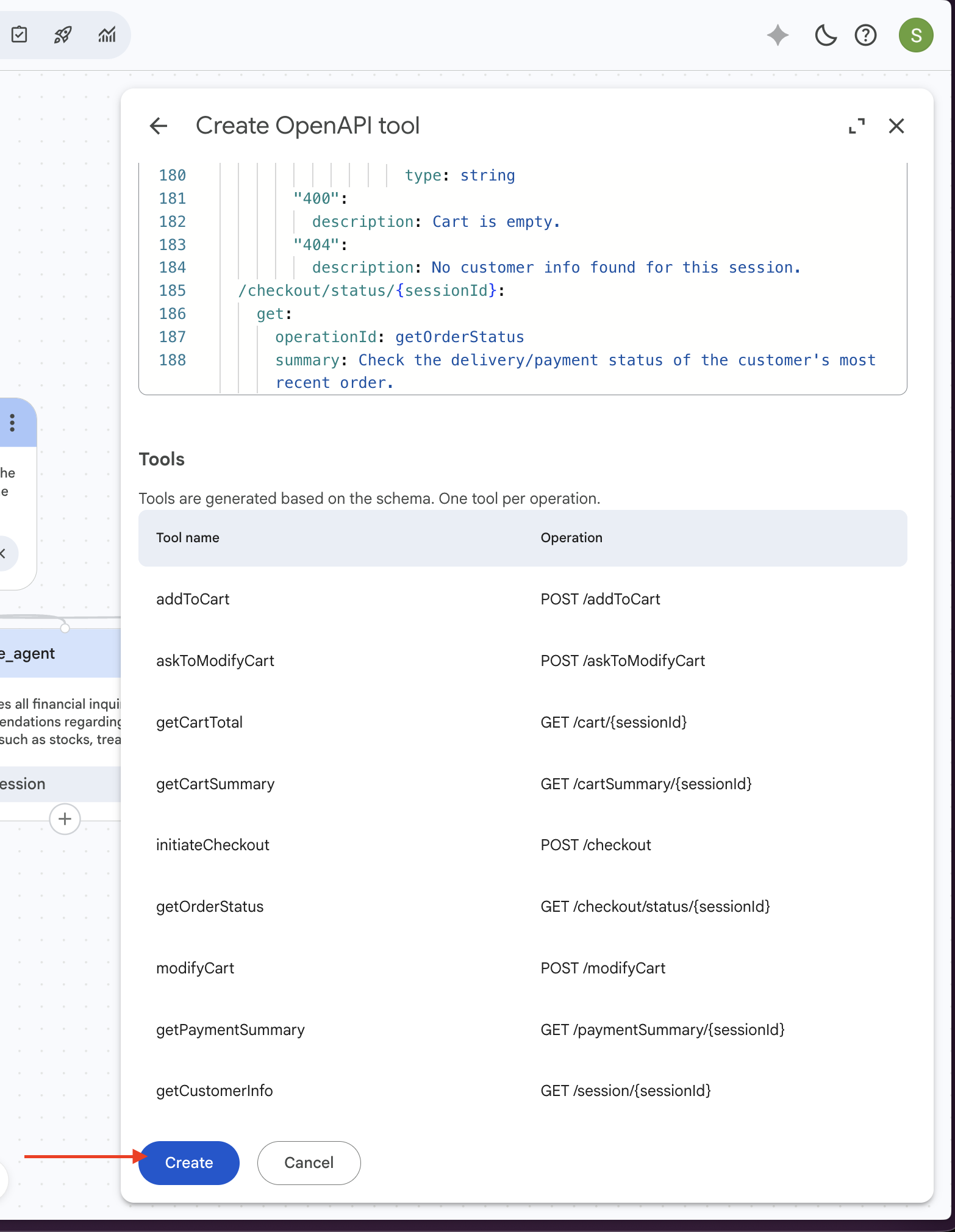
Tool 2: search_parts (OpenAPI)
This tool queries the vehicle parts catalogue and returns carousel-ready product records.
- Click Add tool again, then select the OpenAPI connector.
- Set the tool name to
search_parts. -
Add the following description:
-
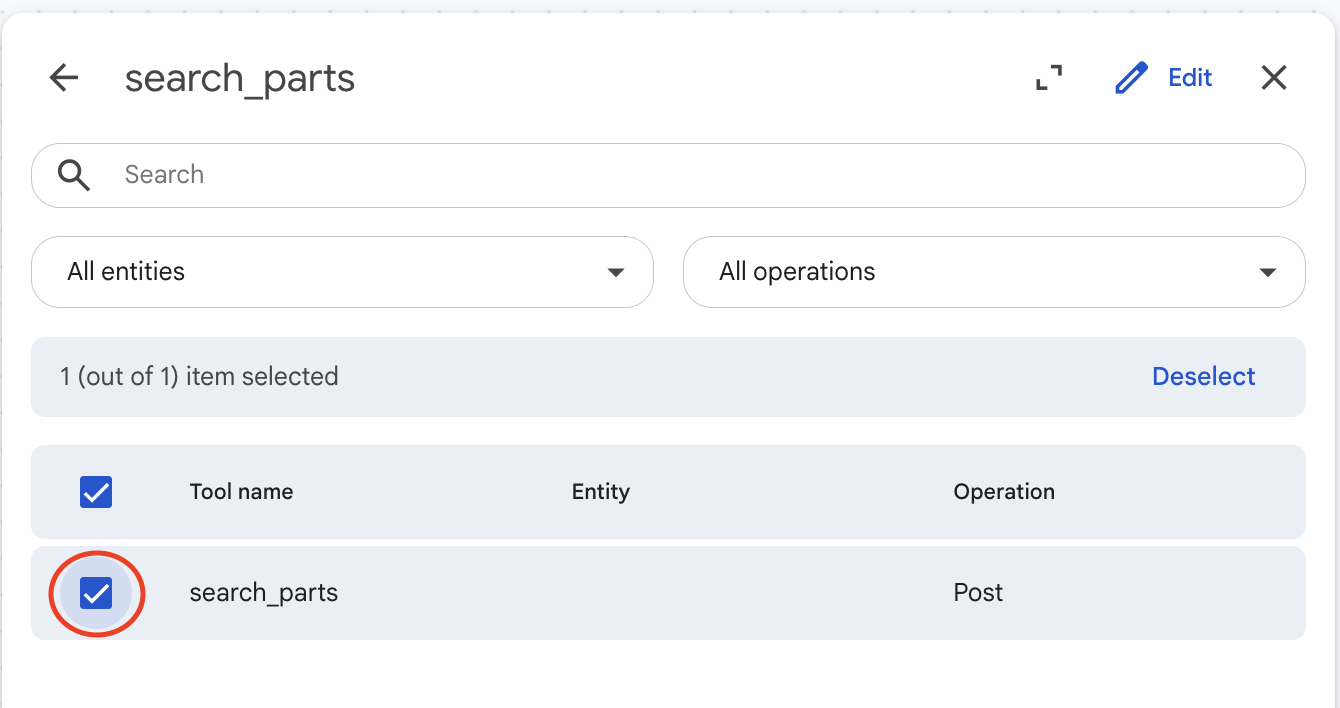
Navigate to GCP Console → Cloud Run → Services, click search_parts to copy its URL.
-
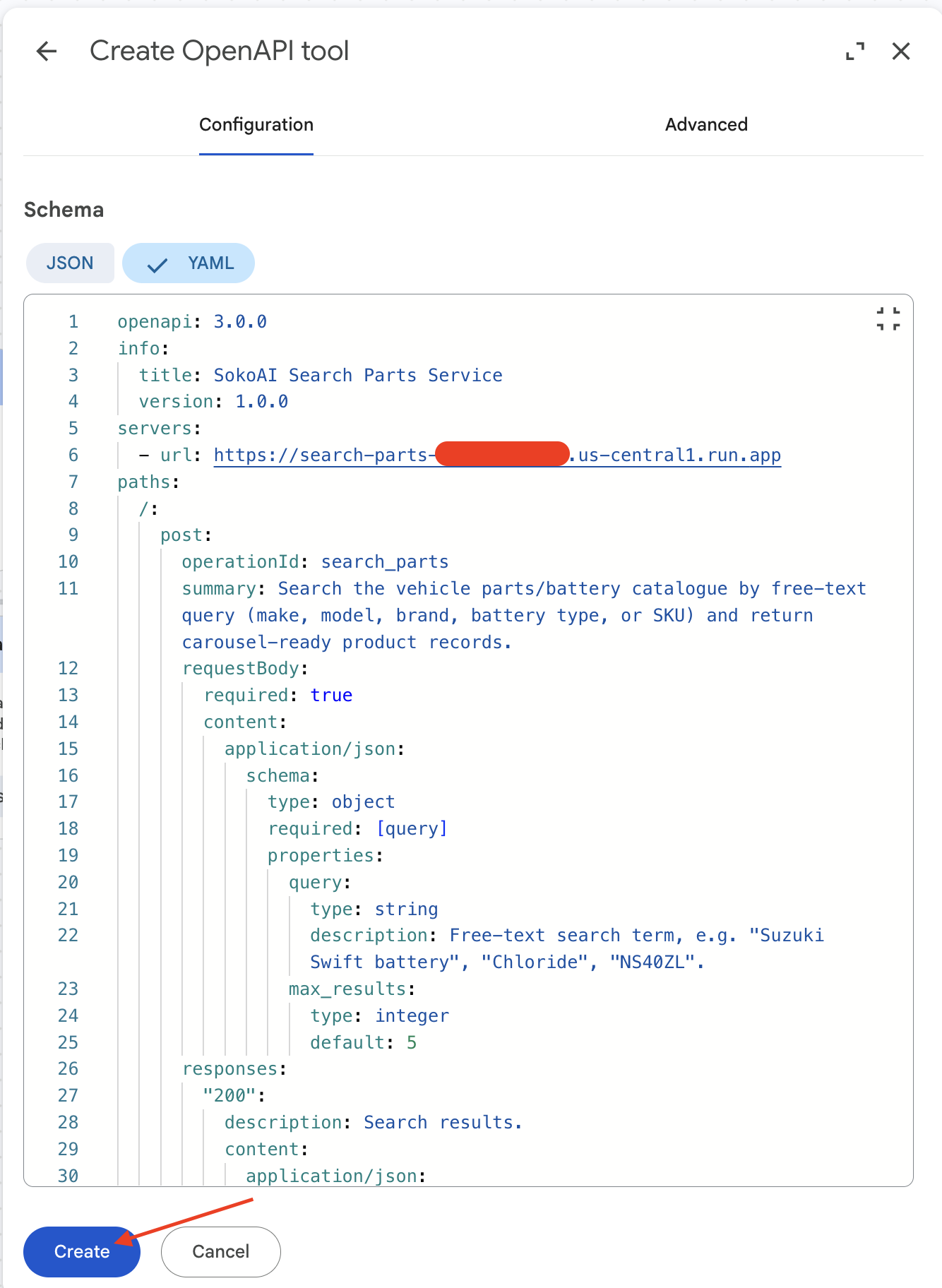
Switch to YAML and paste the following, replacing
<ENTER SEARCH_PARTS FUNCTION URL HERE>:
search_parts OpenAPI YAML — click to expand
openapi: 3.0.0
info:
  title: SokoAI Search Parts Service
  version: 1.0.0
servers:
  - url: <ENTER SEARCH_PARTS FUNCTION URL HERE>
paths:
  /:
    post:
      operationId: search_parts
      summary: Search the vehicle parts/battery catalogue by free-text query (make, model, brand, battery type, or SKU) and return carousel-ready product records.
      requestBody:
        required: true
        content:
          application/json:
            schema:
              type: object
              required: [query]
              properties:
                query:
                  type: string
                  description: Free-text search term, e.g. "Suzuki Swift battery", "Chloride", "NS40ZL".
                max_results:
                  type: integer
                  default: 5
      responses:
        "200":
          description: Search results.
          content:
            application/json:
              schema:
                type: object
                properties:
                  found:
                    type: boolean
                  products:
                    type: array
                    items:
                      type: object
                      properties:
                        productId:
                          type: string
                        title:
                          type: string
                        subtitle:
                          type: string
                        price:
                          type: string
                        imageUris:
                          type: array
                          items:
                            type: string
                        uri:
                          type: string
        "400":
          description: Missing required 'query' field.
          content:
            application/json:
              schema:
                type: object
                properties:
                  error:
                    type: string
-
Click Create.
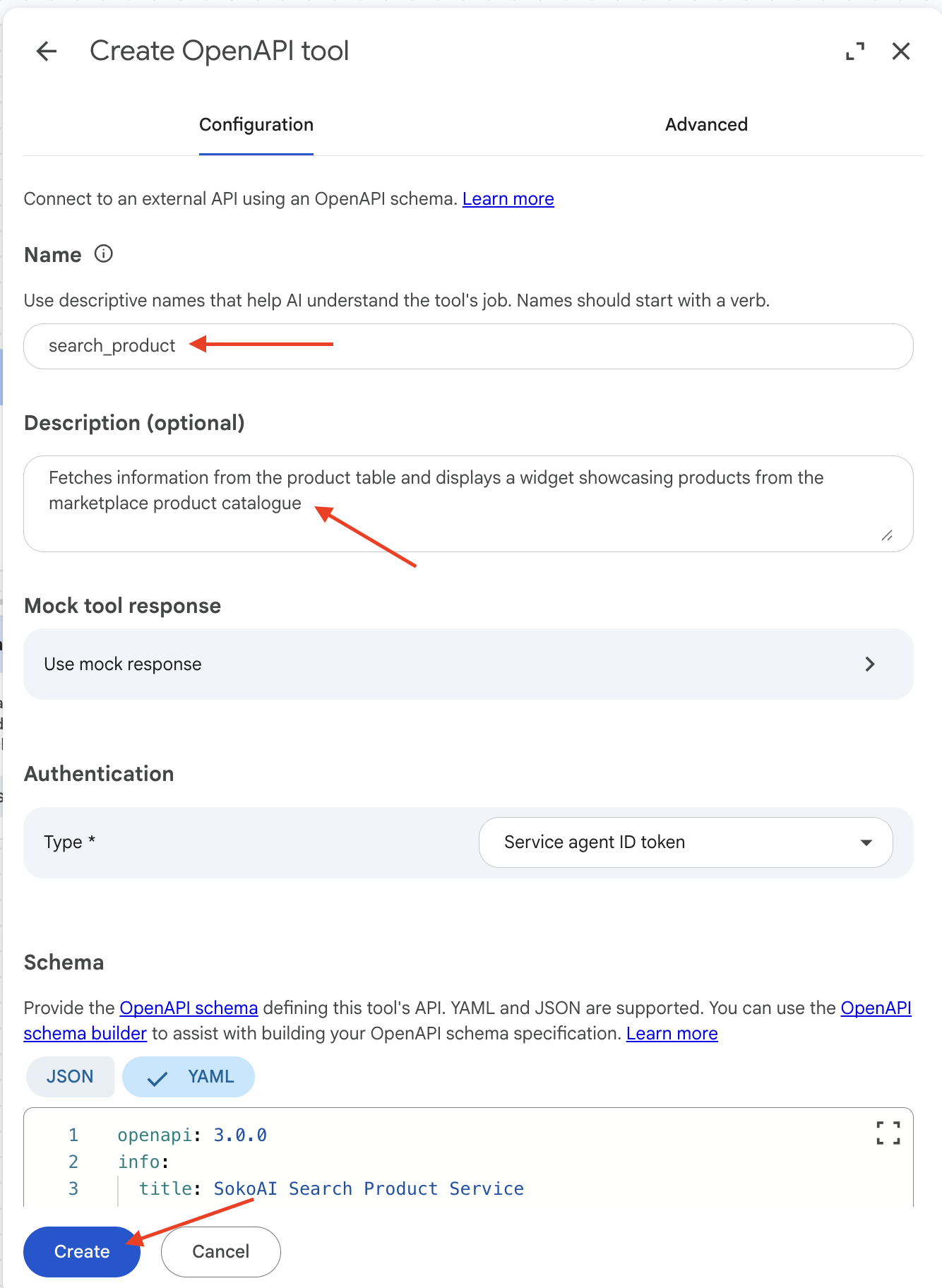
Tool 3: search_products (OpenAPI)
This tool queries the marketplace product catalogue.
- Click Add tool, select OpenAPI.
- Set the tool name to
search_products. -
Add the following description:
-
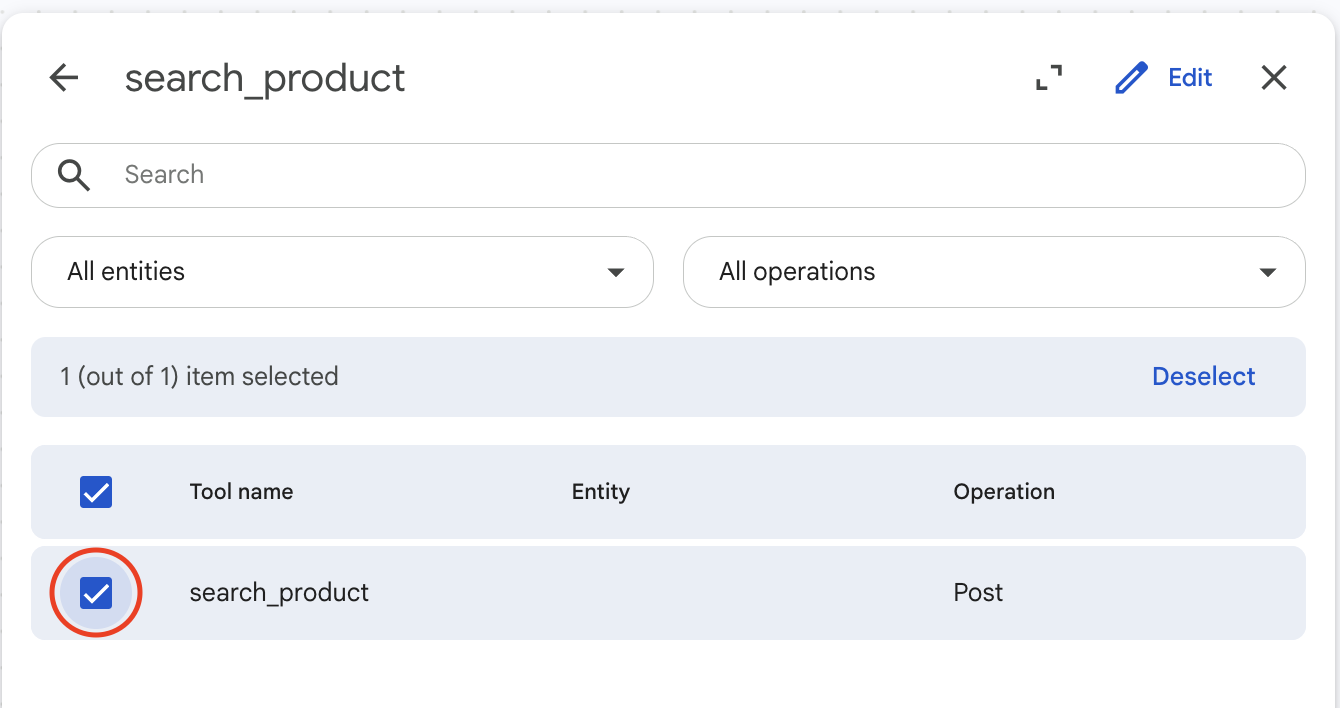
Navigate to Cloud Run and copy the URL for the search_products service.
-
Switch to YAML and paste the following, replacing
<ENTER SEARCH_PRODUCTS FUNCTION URL HERE>:
search_products OpenAPI YAML — click to expand
openapi: 3.0.0
info:
  title: SokoAI Search Product Service
  version: 1.0.0
servers:
  - url: <ENTER SEARCH_PRODUCTS FUNCTION URL HERE>
paths:
  /:
    post:
      operationId: search_product
      summary: Search the product catalogue by free-text query and return carousel-ready product records.
      requestBody:
        required: true
        content:
          application/json:
            schema:
              type: object
              required: [query]
              properties:
                query:
                  type: string
                  description: Free-text search term, e.g. "flour", "tomatoes", "wireless headphones".
                max_results:
                  type: integer
                  default: 5
      responses:
        "200":
          description: Search results.
          content:
            application/json:
              schema:
                type: object
                properties:
                  found:
                    type: boolean
                  products:
                    type: array
                    items:
                      type: object
                      properties:
                        productId:
                          type: string
                        title:
                          type: string
                        subtitle:
                          type: string
                        price:
                          type: string
                        imageUris:
                          type: array
                          items:
                            type: string
                        uri:
                          type: string
        "400":
          description: Missing required 'query' field.
          content:
            application/json:
              schema:
                type: object
                properties:
                  error:
                    type: string
-
Click Create.
Tool 4: finance_table (Datastore)
This tool gives the Finance Agent access to financial instruments data stored in BigQuery.
-
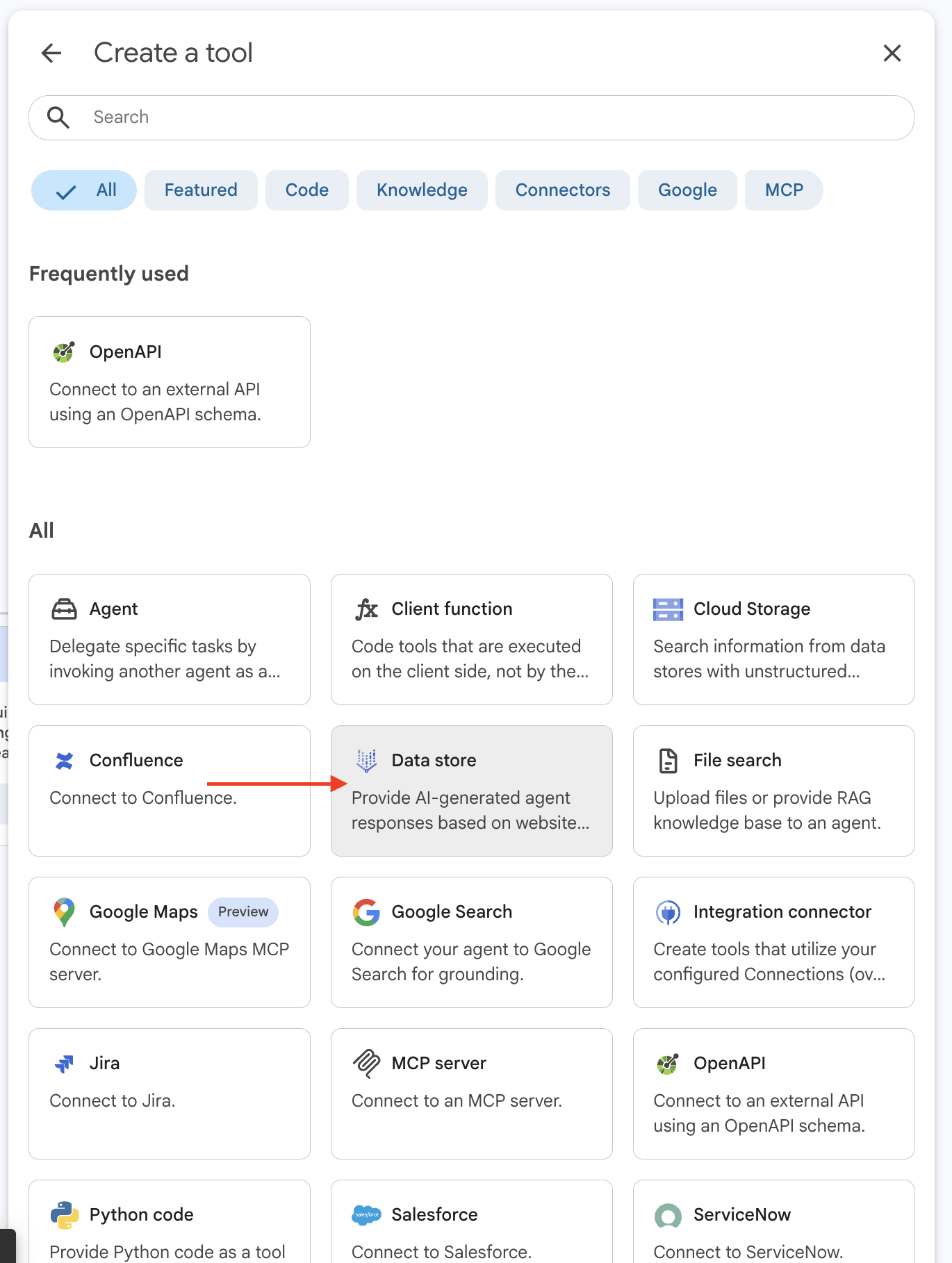
Click Add tool, then select Datastore.
-
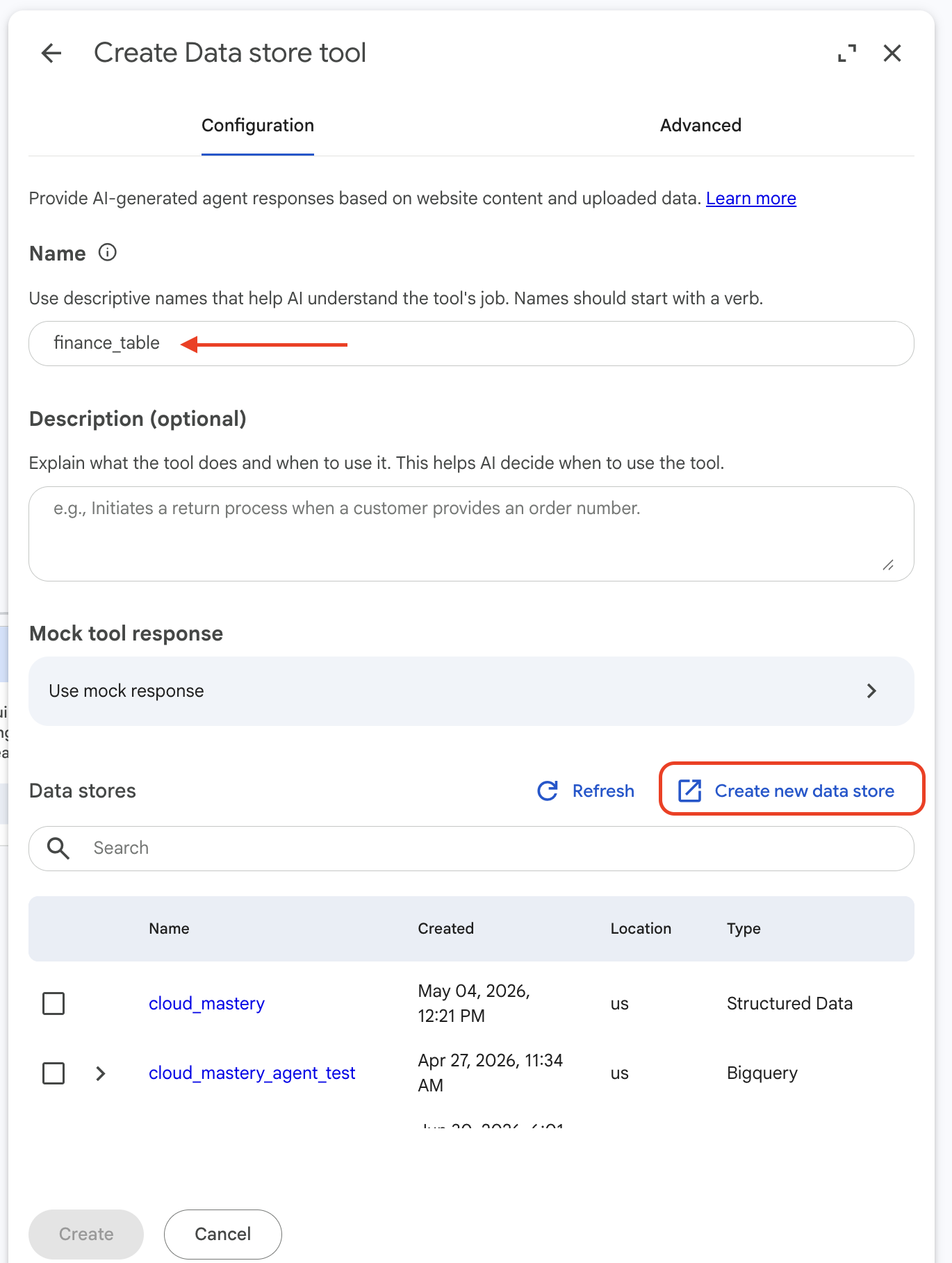
Set the name to
finance_table. -
Click Create new data store. This opens a new screen.
-
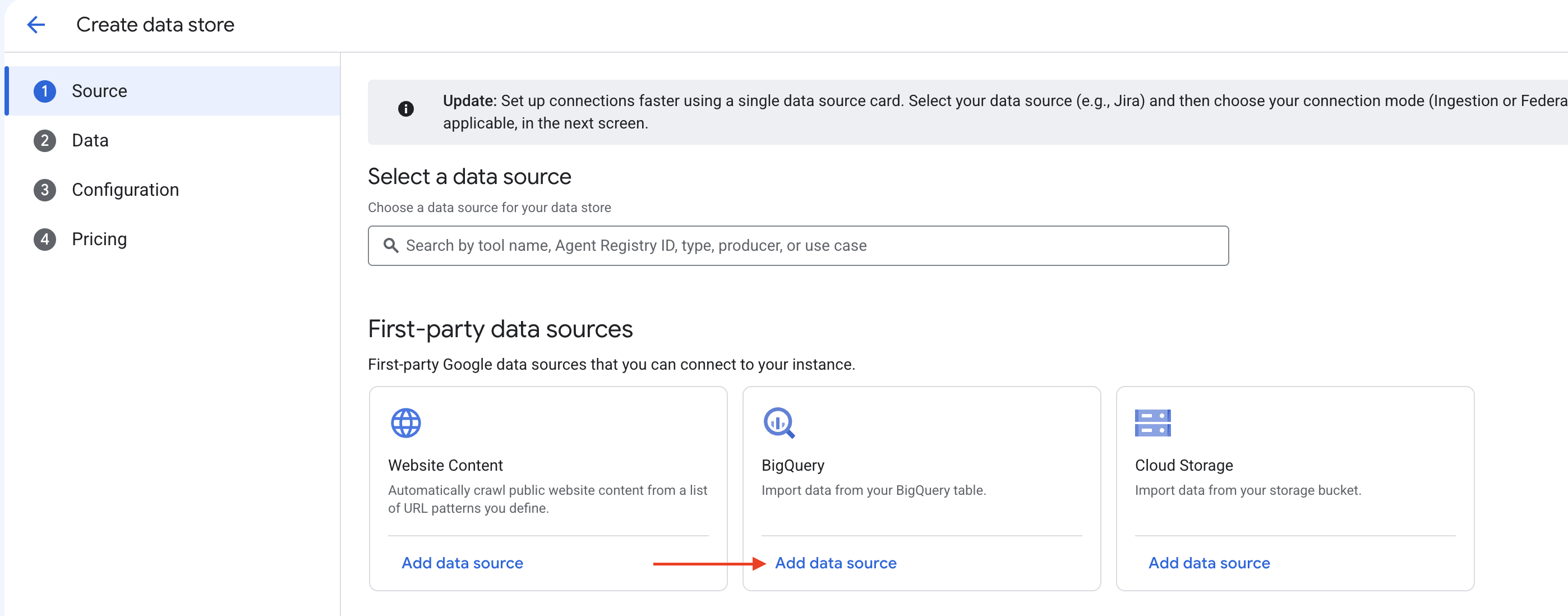
Select BigQuery as the data source.
-
Select BigQuery table with own schema and One time ingestion.
-
Click Browse to select the table.
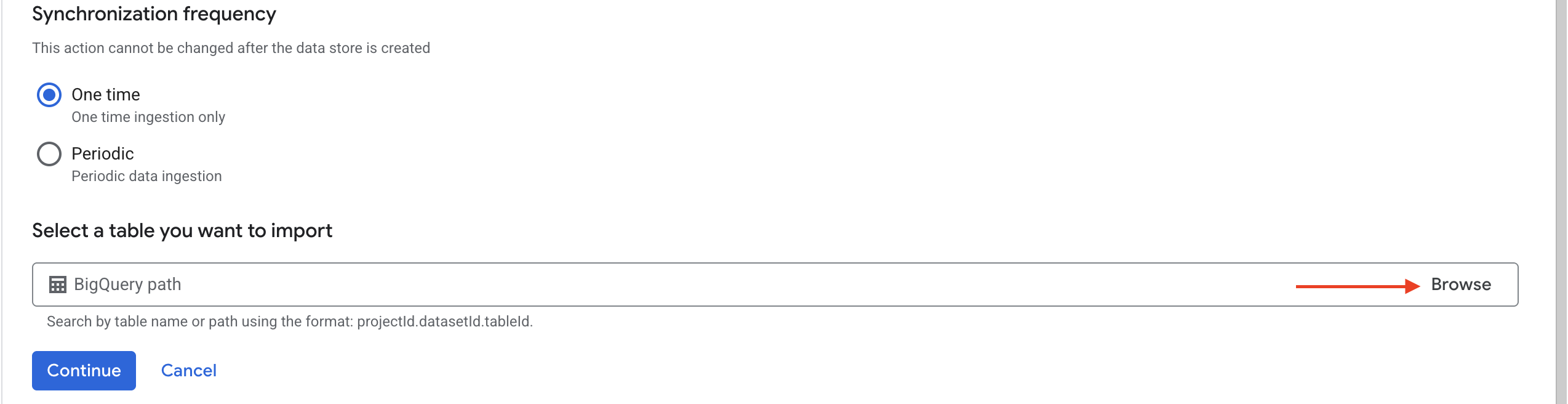
-
Search for
cloud_mastery, selecttable_finance, then click Select.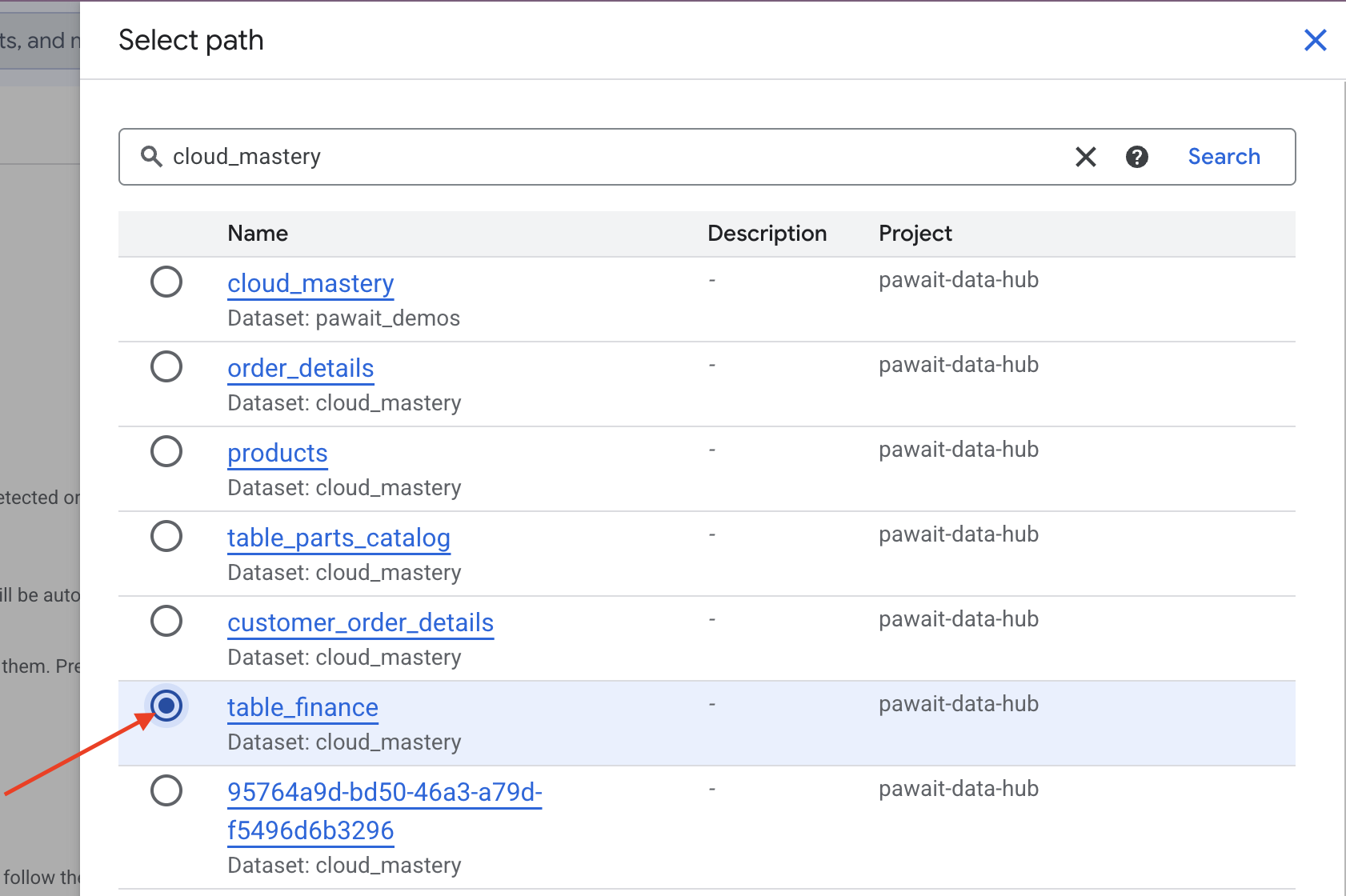
-
Verify the configuration and click Continue.
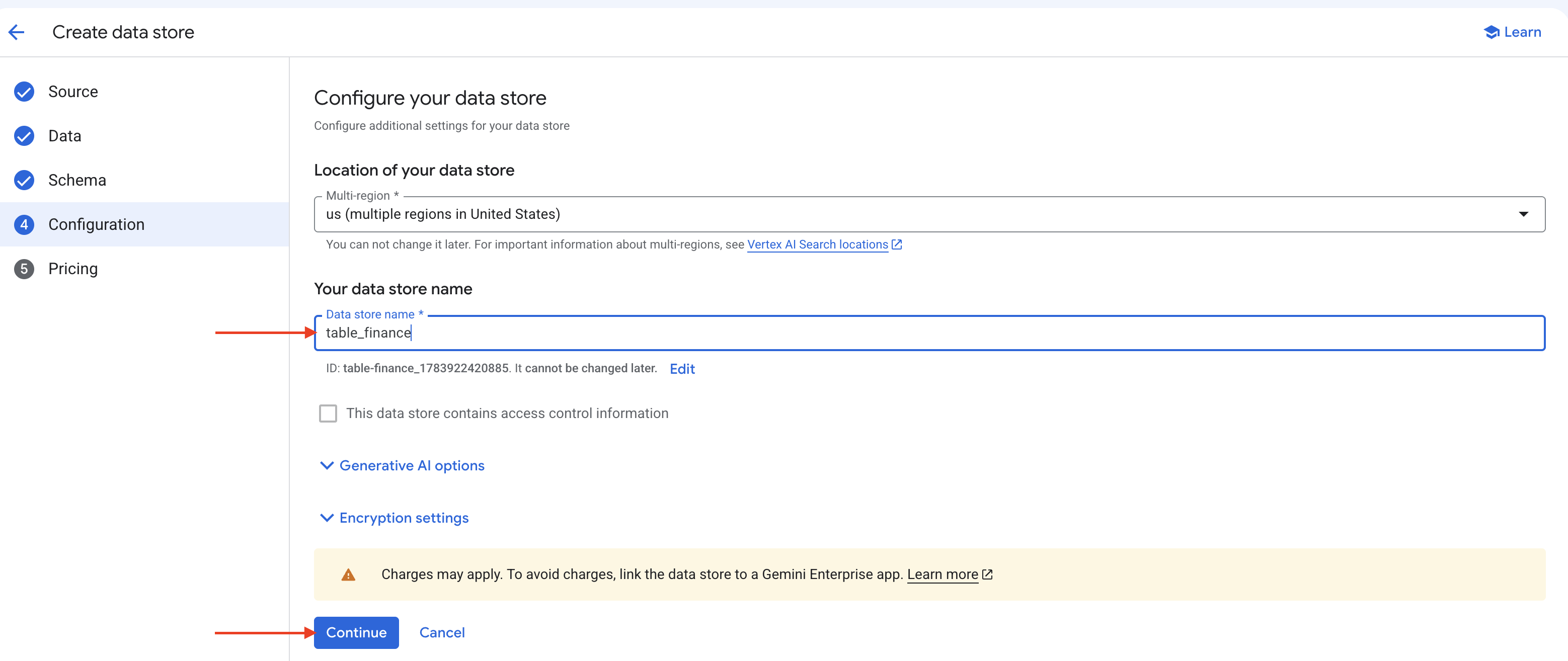
-
Confirm the datastore location is US (United States), set the name to
table_finance, then click Continue.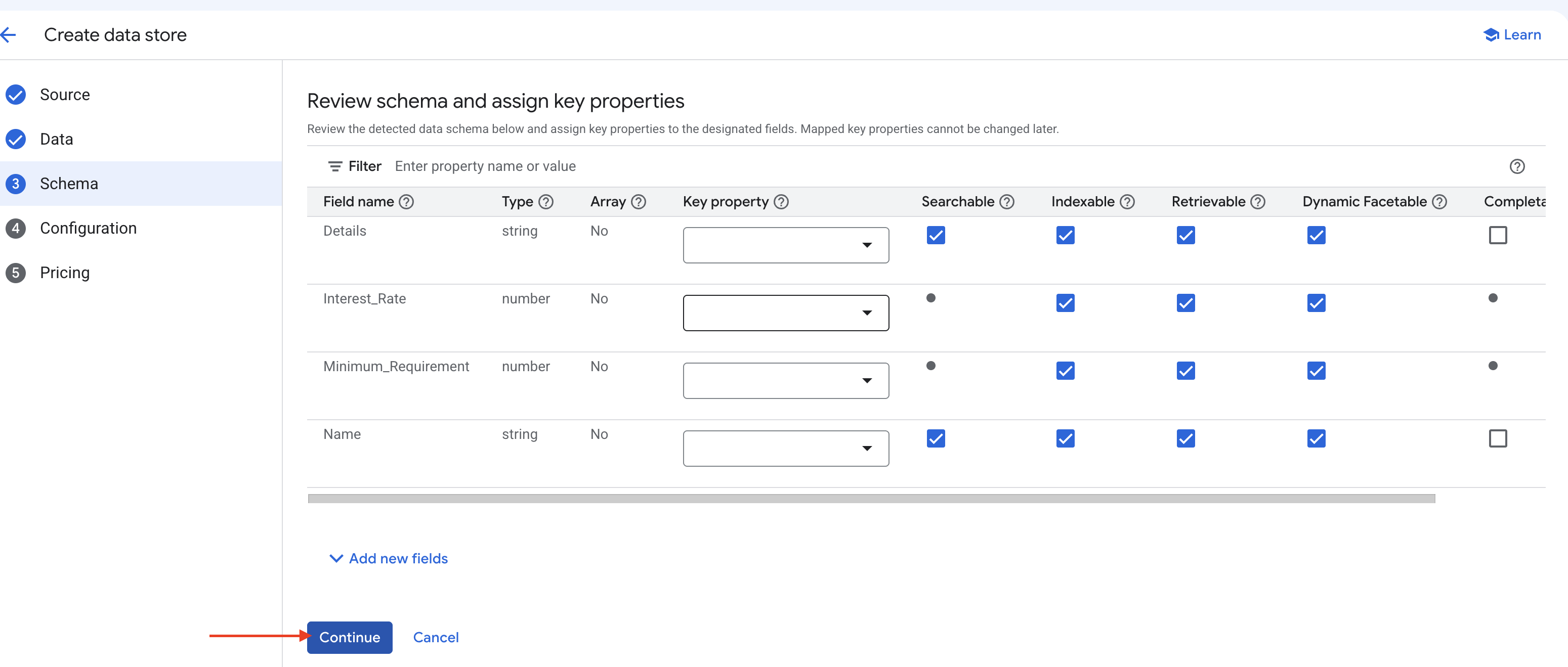
-
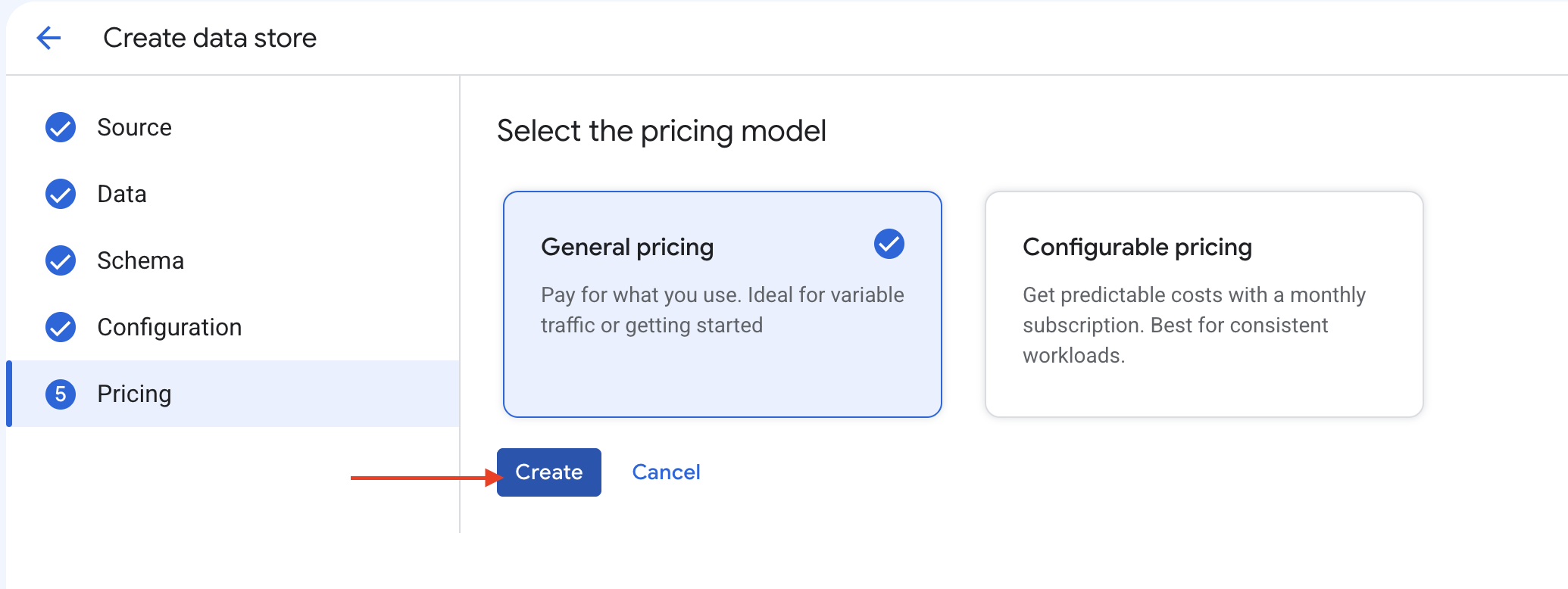
Select General Pricing, then click Create.
-
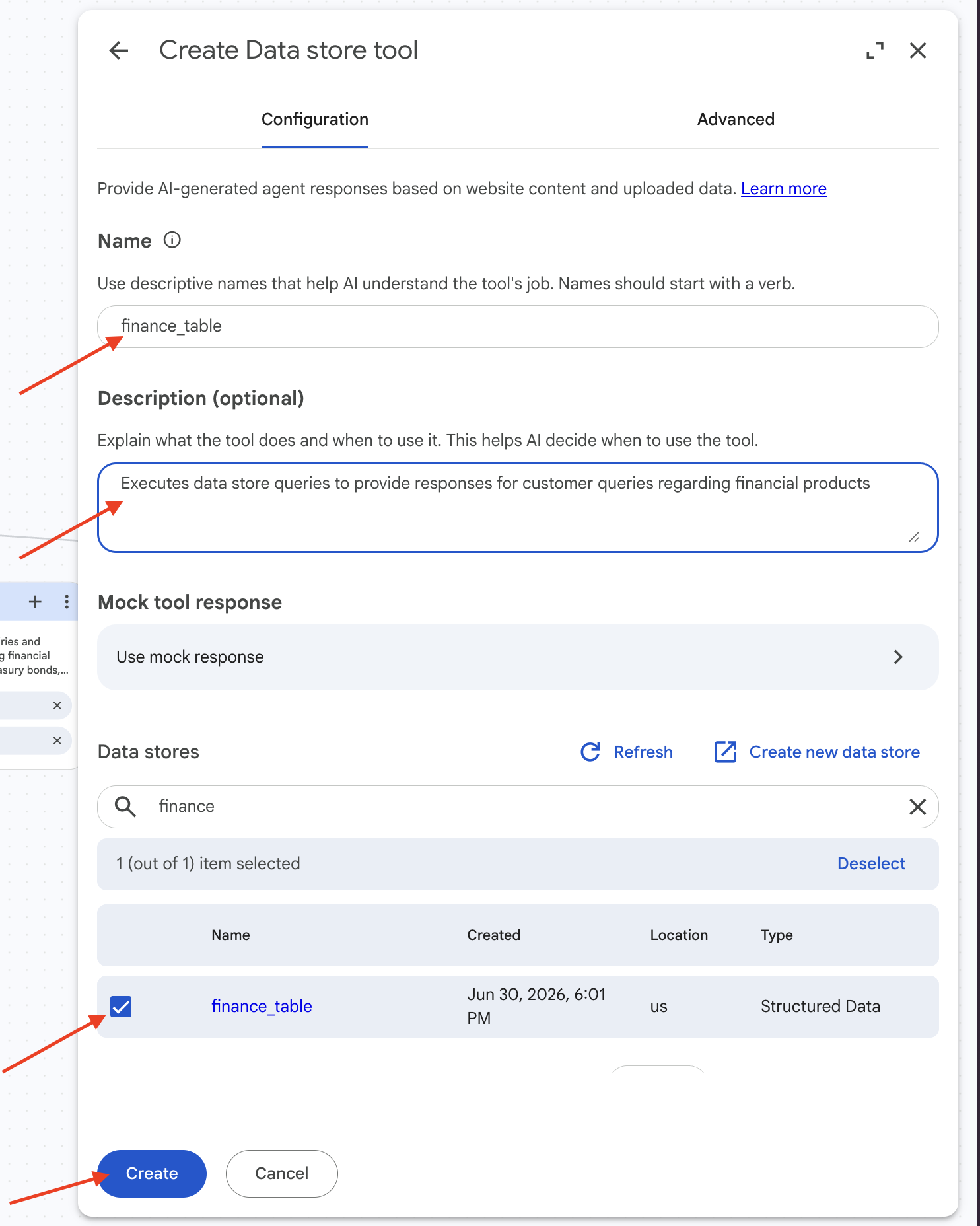
Once processing is complete, return to the previous page. The new datastore will be available in the configuration panel. Add the following description:
Then click Create.
Note
Datastore indexing may take a few minutes. You can continue with the next tools while it processes.
Tool 5: lookup_finance (Google Search)
This tool supplements the finance datastore with live web results from trusted Kenyan financial market sources.
-
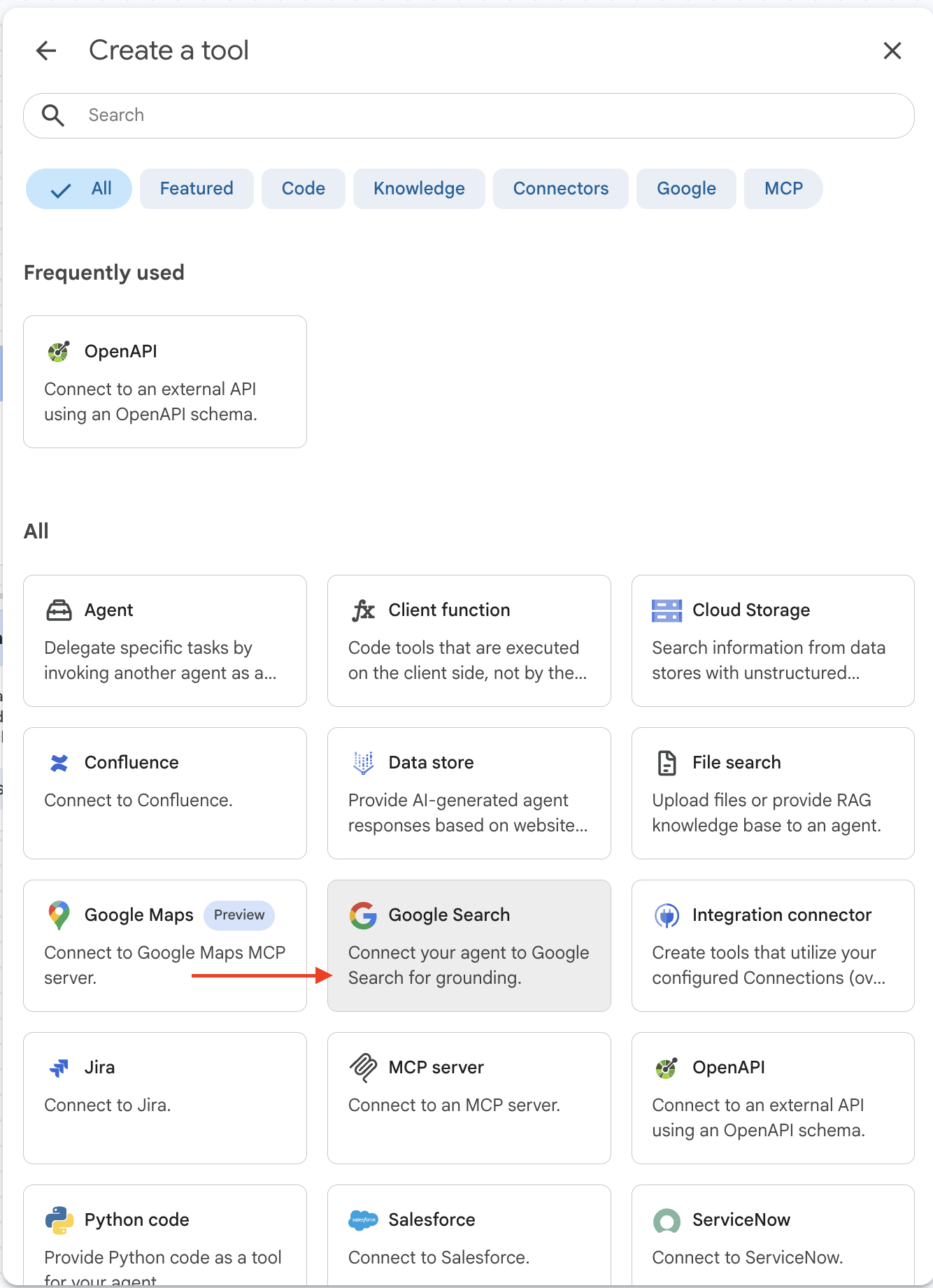
Click Add tool, then select Google Search.
-
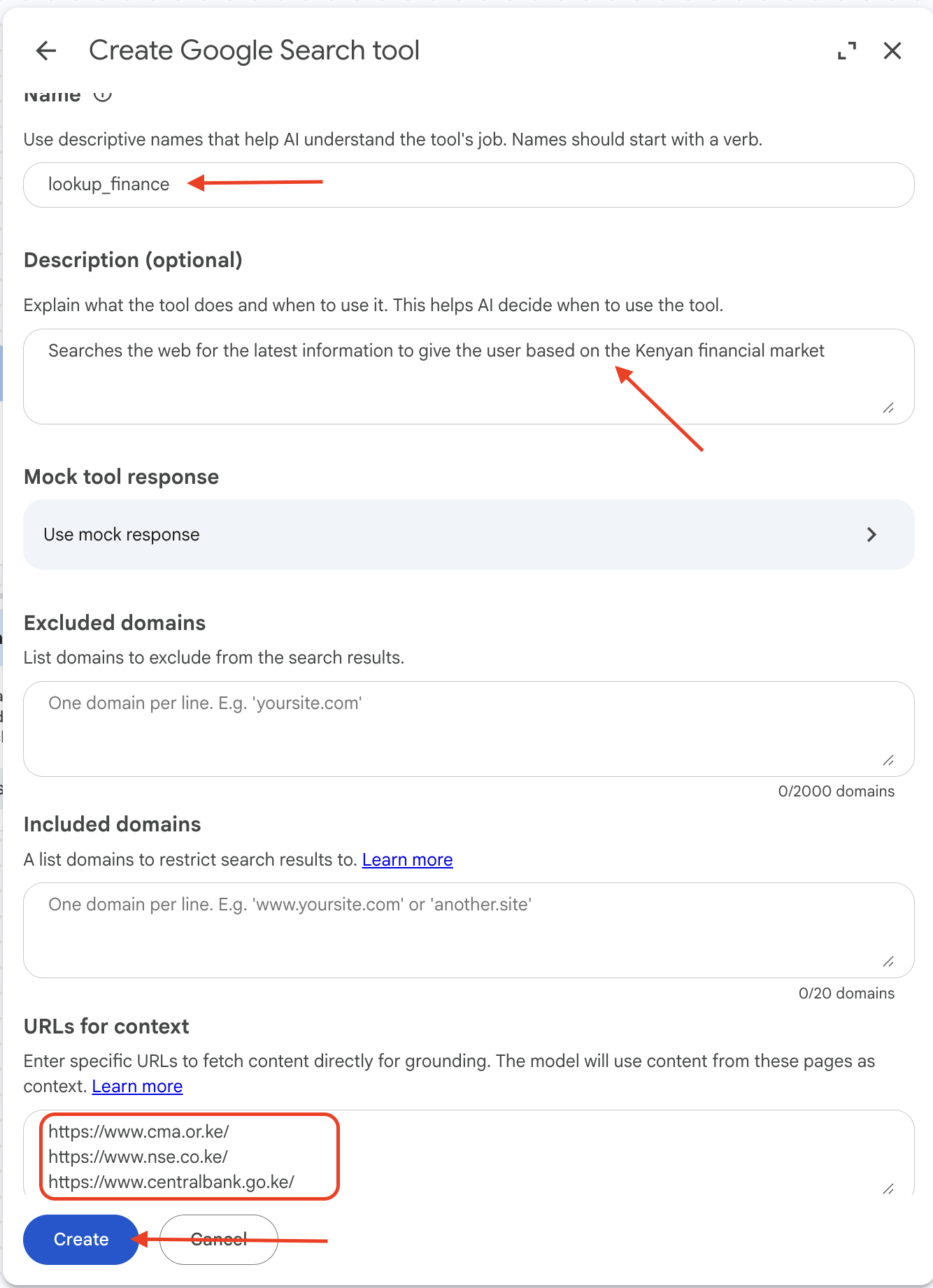
Set the name to
lookup_finance. -
Add the following description:
-
In the URLs for context section, add the following three URLs:
-
Confirm the setup looks correct, then click Create.
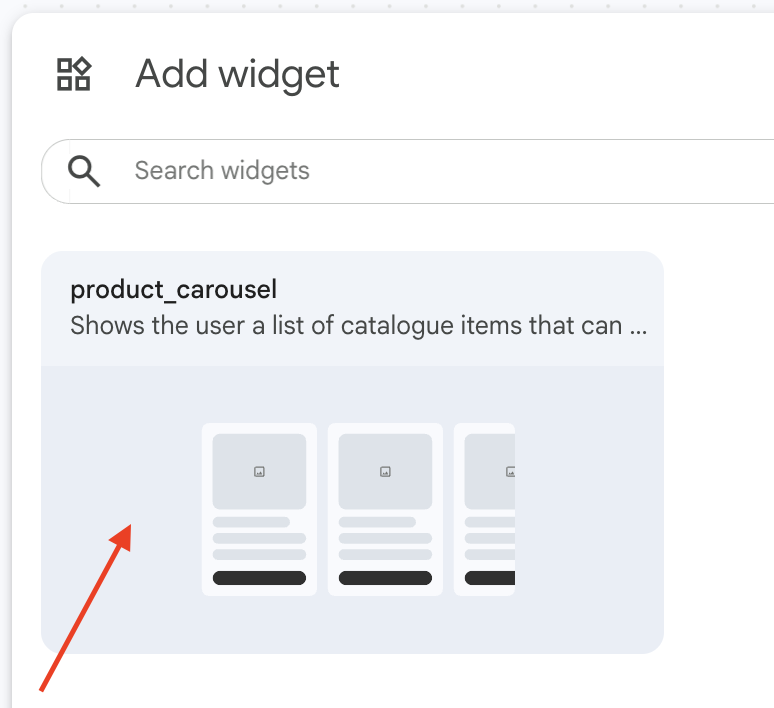
Tool 6: product_carousel (Widget)
This widget displays product cards visually inside the chat interface for both the Marketplace and Carparts agents.
-
Click the Widget icon on the right side of the Agent Builder screen.
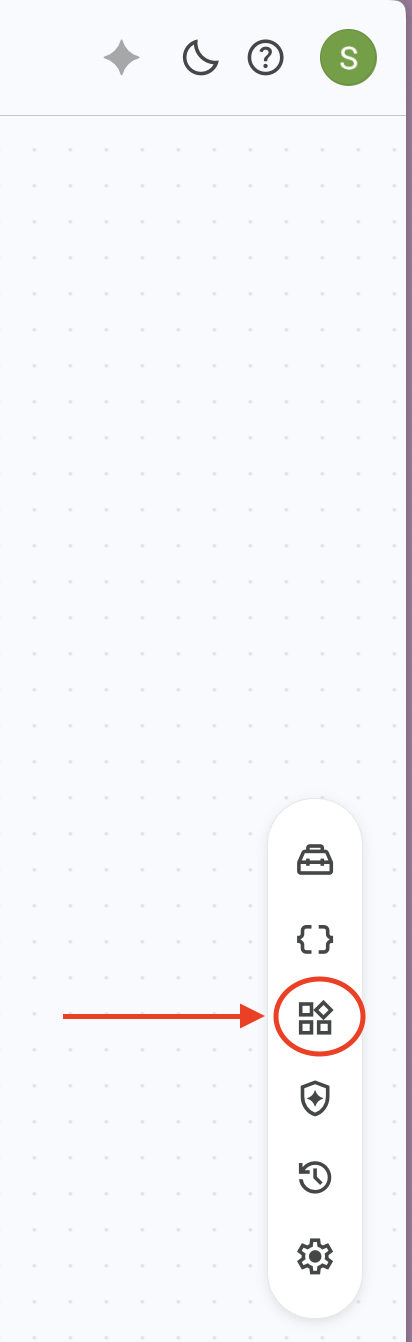
-
In the side panel, click Add widget.
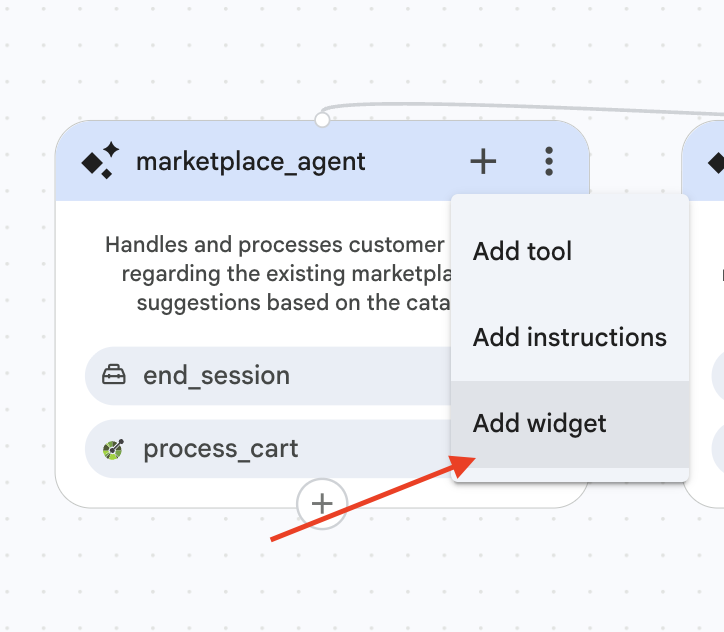
-
Select product_carousel.
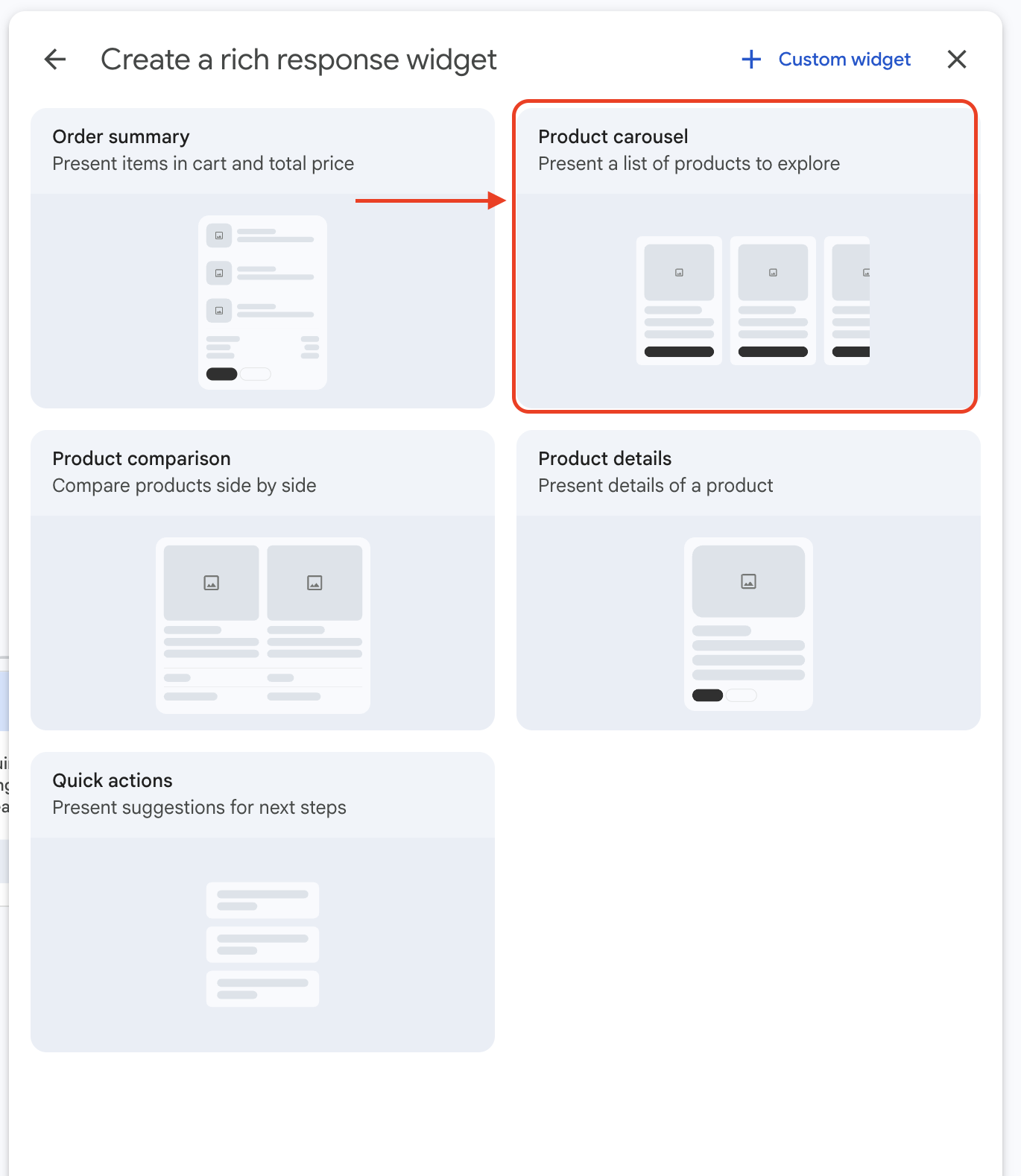
-
Set the name to
product_carouseland add the following description: -
Click Create.
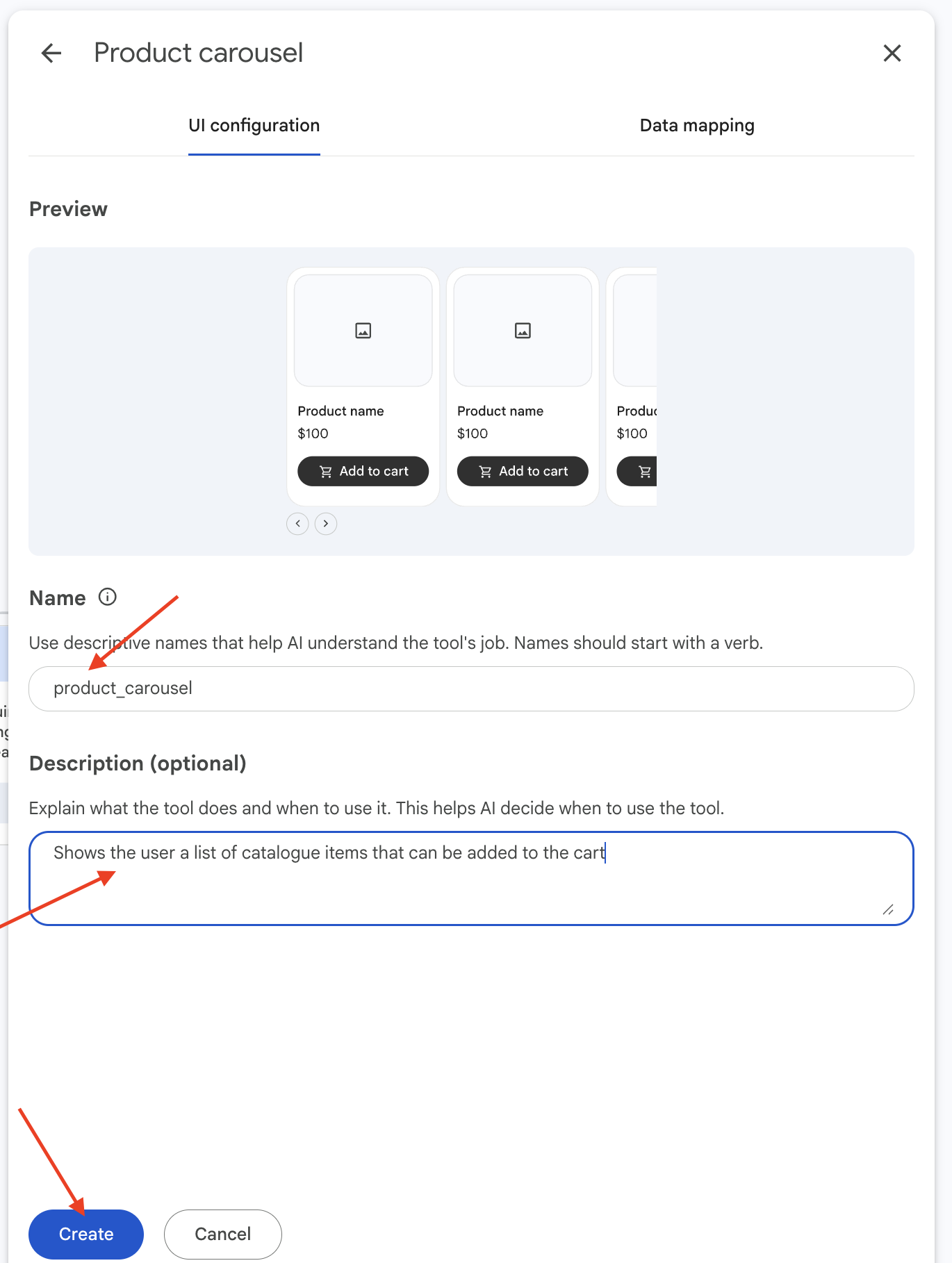
Step 3 Complete
All six tools are now created. In the next step, you will connect these tools to the agents and add the detailed XML instructions that govern each agent's behaviour.
ste